








 生徒
生徒Three.jsでスクロールに連動する3Dアニメーションを作りたいんですが、どうすれば良いでしょうか?
 ペン博士
ペン博士よーく聞くんだぞ!Three.jsとスクロールイベントを組み合わせれば、没入感のある3D体験が作れるんじゃ。今日は基本から応用まで詳しく解説するぞい!
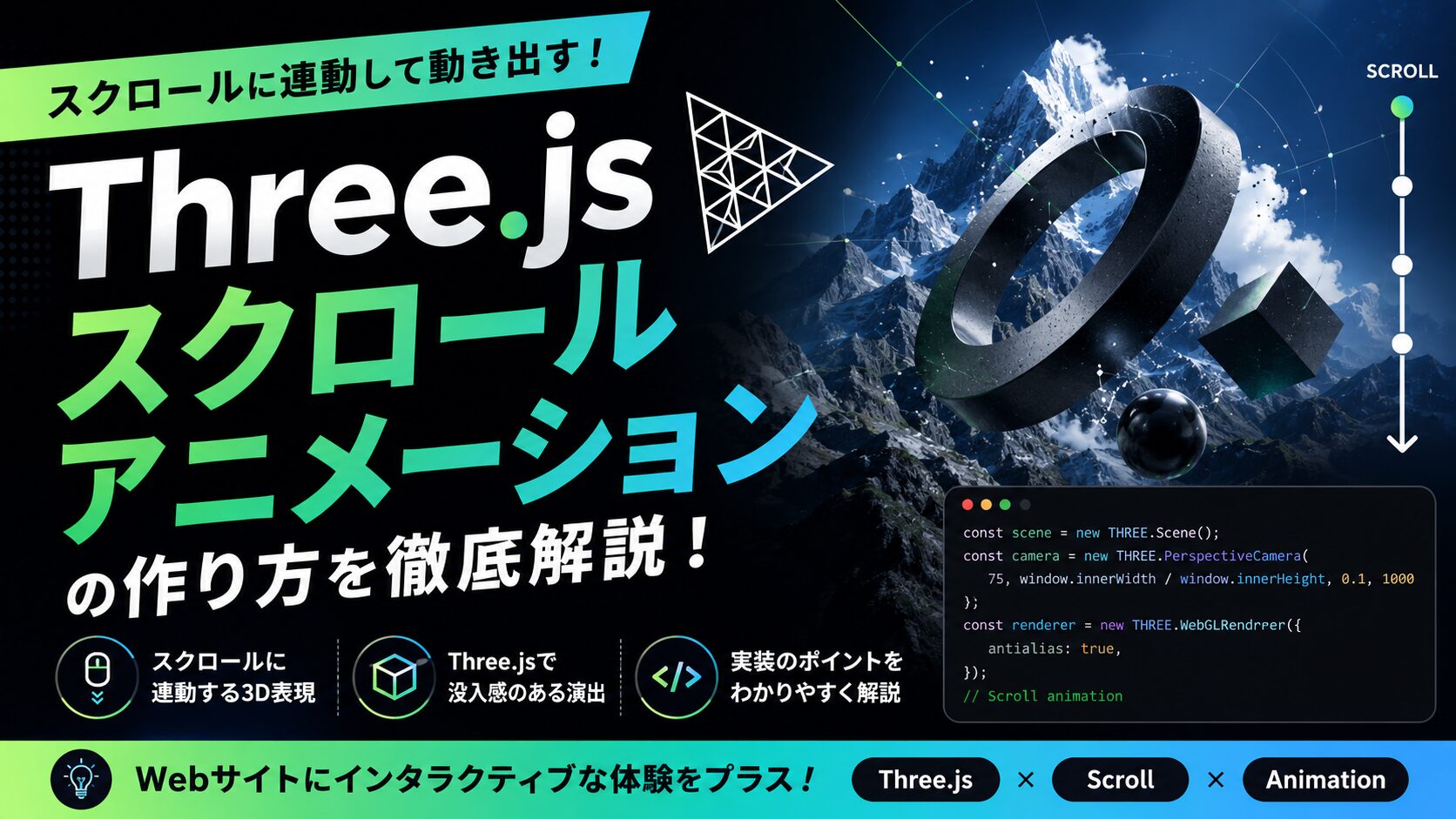
結論から言うと、Three.js のスクロール連動アニメーションは「スクロール量の取得 → 3D 座標への変換 → requestAnimationFrame での再描画」という3ステップで実現します。線形補間(Lerp)を使えば慣性効果も簡単に追加できます。
本記事では、Three.js を使ってスクロール連動の 3D アニメーションを実装する方法を、基礎から応用まで、実装例を交えて徹底解説します。
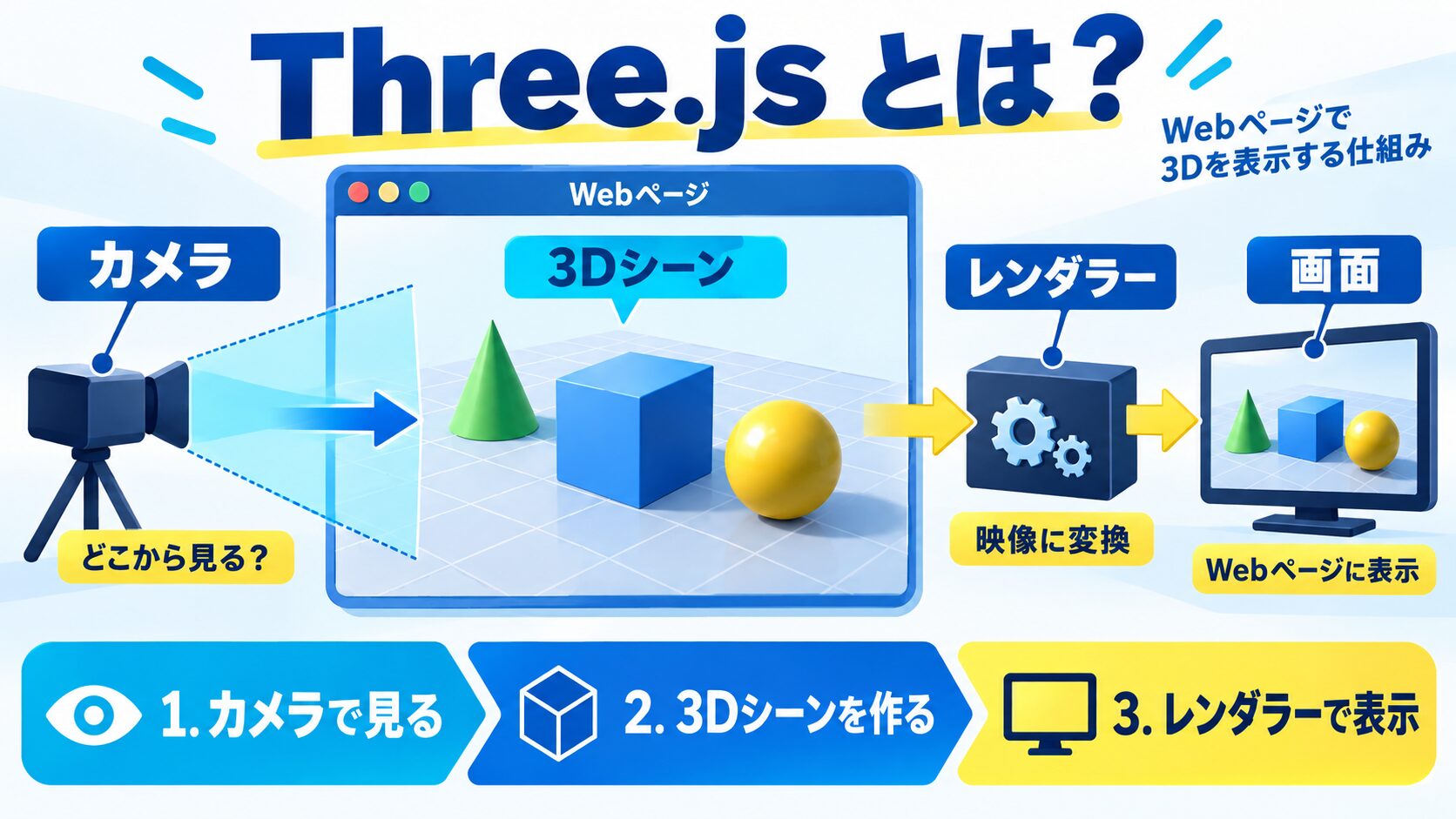
Three.js は、WebGL をより簡単に扱えるようにした JavaScript ライブラリです。WebGL の複雑な低レベル API を抽象化し、数行のコードで 3D シーンを作成できます。
| 構成要素 | 役割 |
|---|---|
| Scene(シーン) | 3D オブジェクトを配置する空間 |
| Camera(カメラ) | シーンを見る視点 |
| Renderer(レンダラー) | シーンとカメラを使って画像を生成 |
| Mesh(メッシュ) | ジオメトリ(形状)とマテリアル(質感)の組み合わせ |
| Light(ライト) | シーンを照らす光源 |
 生徒
生徒まずは何から始めれば良いですか?
ペン博士まずはThree.jsをプロジェクトに導入するんじゃ。CDNを使えば簡単に始められるぞ
<!DOCTYPE html>
<html lang="ja">
<head>
  <meta charset="UTF-8">
  <meta name="viewport" content="width=device-width, initial-scale=1.0">
  <title>Three.js スクロールアニメーション</title>
  <style>
    body {
      margin: 0;
      overflow-x: hidden;
    }

    #canvas-container {
      position: fixed;
      top: 0;
      left: 0;
      width: 100%;
      height: 100vh;
      z-index: -1;
    }

    .content {
      position: relative;
      height: 300vh; /* スクロール可能にする */
      padding: 50px;
    }
  </style>
</head>
<body>
  <div id="canvas-container"></div>
  <div class="content">
    <h1>スクロールしてみてください</h1>
  </div>

  <!-- Three.js本体 -->
  <script type="importmap">
    {
      "imports": {
        "three": "https://cdn.jsdelivr.net/npm/three@0.160.0/build/three.module.js"
      }
    }
  </script>

  <script type="module" src="main.js"></script>
</body>
</html># プロジェクトの初期化
npm init -y
# Three.jsのインストール
npm install three
# Viteを使った開発環境(オプション)
npm install -D vite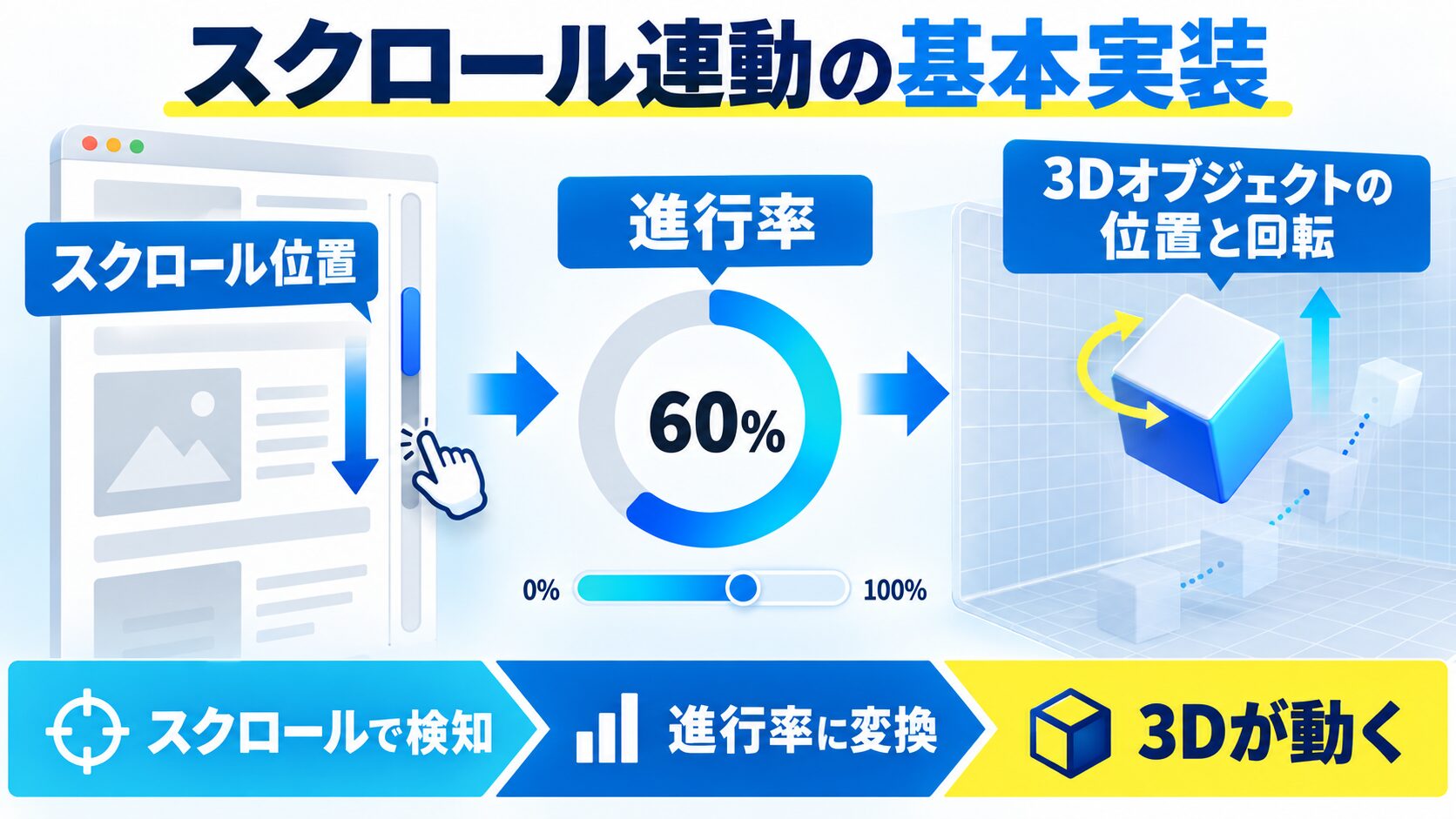
// main.js
import * as THREE from 'three';

// シーン、カメラ、レンダラーの作成
const scene = new THREE.Scene();

// カメラの設定
const camera = new THREE.PerspectiveCamera(
  75, // 視野角(FOV)
  window.innerWidth / window.innerHeight, // アスペクト比
  0.1, // Near(これより近いものは描画されない)
  1000 // Far(これより遠いものは描画されない)
);
camera.position.z = 5;

// レンダラーの設定
const renderer = new THREE.WebGLRenderer({
  alpha: true, // 背景を透明に
  antialias: true // アンチエイリアス有効化
});
renderer.setSize(window.innerWidth, window.innerHeight);
renderer.setPixelRatio(Math.min(window.devicePixelRatio, 2)); // Retinaディスプレイ対応

// canvasをDOMに追加
const container = document.getElementById('canvas-container');
container.appendChild(renderer.domElement);

// ジオメトリとマテリアルでメッシュを作成
const geometry = new THREE.BoxGeometry(1, 1, 1);
const material = new THREE.MeshStandardMaterial({
  color: 0x00ff00,
  metalness: 0.5,
  roughness: 0.5
});
const cube = new THREE.Mesh(geometry, material);
scene.add(cube);

// ライトの追加
const ambientLight = new THREE.AmbientLight(0xffffff, 0.5);
scene.add(ambientLight);

const directionalLight = new THREE.DirectionalLight(0xffffff, 0.8);
directionalLight.position.set(5, 5, 5);
scene.add(directionalLight);

// アニメーションループ
function animate() {
  requestAnimationFrame(animate);

  // レンダリング
  renderer.render(scene, camera);
}

animate();// スクロールイベントの監視
let scrollY = window.pageYOffset;
window.addEventListener('scroll', () => {
scrollY = window.pageYOffset;
});
// アニメーションループに追加
function animate() {
requestAnimationFrame(animate);
// スクロール量に応じてキューブを回転
cube.rotation.y = scrollY * 0.001;
cube.rotation.x = scrollY * 0.0005;
// レンダリング
renderer.render(scene, camera);
}// ウィンドウリサイズ対応
window.addEventListener('resize', () => {
// カメラのアスペクト比を更新
camera.aspect = window.innerWidth / window.innerHeight;
camera.updateProjectionMatrix();
// レンダラーのサイズを更新
renderer.setSize(window.innerWidth, window.innerHeight);
renderer.setPixelRatio(Math.min(window.devicePixelRatio, 2));
});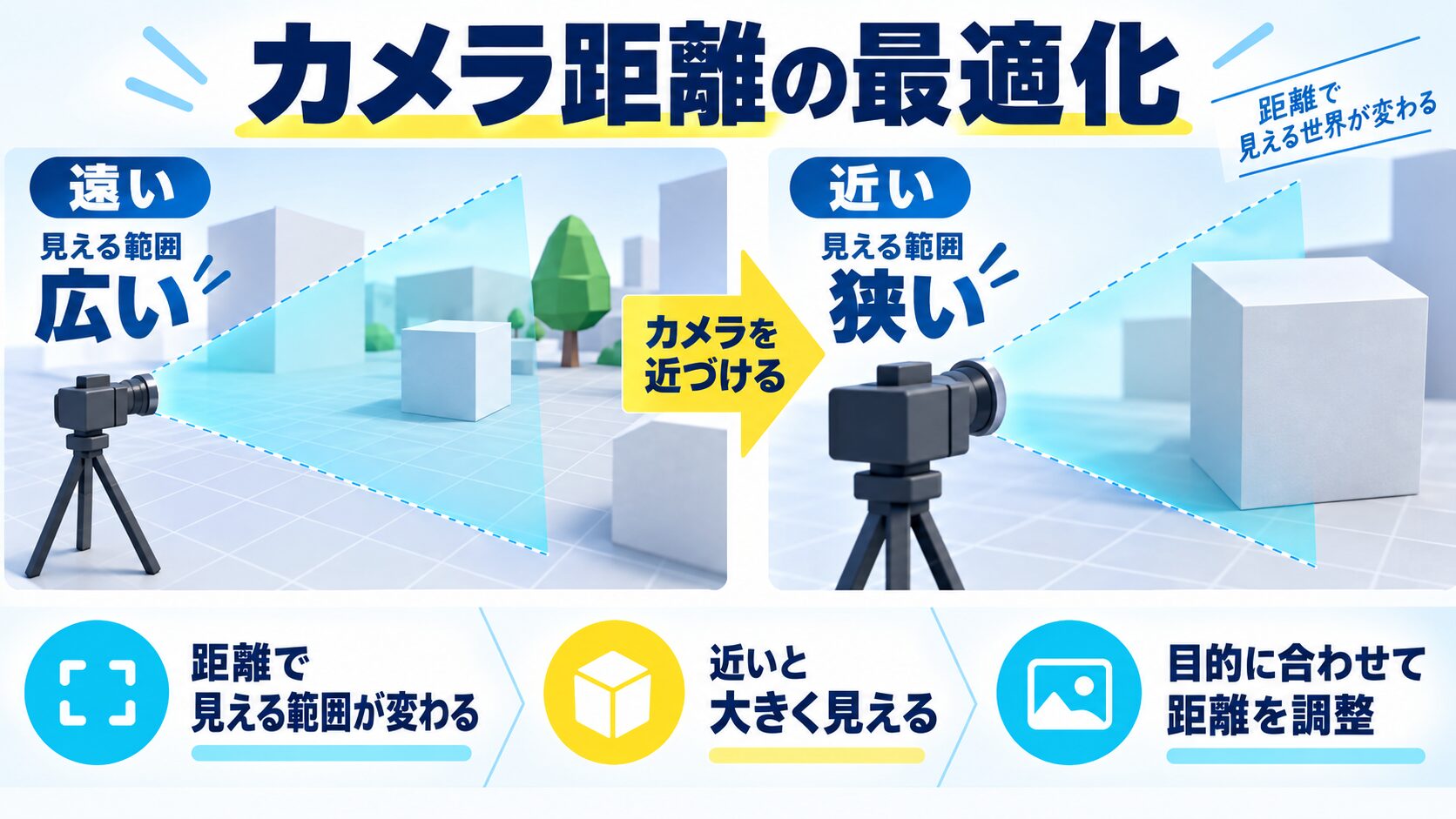
Three.js の座標系をピクセル座標に合わせることで、より直感的な配置が可能になります。
// カメラの視野角(FOV)
const fov = 45;

// カメラ距離を計算
// この距離に配置すると、Three.jsの座標1単位 = 1ピクセルになる
function getCameraDistance() {
  const fovRad = (fov * Math.PI) / 180; // 度をラジアンに変換
  const distance = window.innerHeight / (2 * Math.tan(fovRad / 2));
  return distance;
}

// カメラの設定
const camera = new THREE.PerspectiveCamera(
  fov,
  window.innerWidth / window.innerHeight,
  0.1,
  10000
);

// カメラをZ軸上で最適な距離に配置
camera.position.z = getCameraDistance();

// リサイズ時にカメラ距離を再計算
window.addEventListener('resize', () => {
  camera.aspect = window.innerWidth / window.innerHeight;
  camera.position.z = getCameraDistance();
  camera.updateProjectionMatrix();

  renderer.setSize(window.innerWidth, window.innerHeight);
  renderer.setPixelRatio(Math.min(window.devicePixelRatio, 2));
});// これで座標1単位 = 1ピクセルになる
// 例:画面中央に200x200pxのキューブを配置
const cubeSize = 200;
const geometry = new THREE.BoxGeometry(cubeSize, cubeSize, cubeSize);
const material = new THREE.MeshStandardMaterial({ color: 0x00ff00 });
const cube = new THREE.Mesh(geometry, material);
// 画面中央に配置(Three.jsの原点は画面中央)
cube.position.x = 0;
cube.position.y = 0;
cube.position.z = 0;
scene.add(cube);
// スクロール連動でY座標を変更
window.addEventListener('scroll', () => {
// スクロール量をそのままY座標に適用
// 負の値にすることで、下にスクロールすると下に移動
cube.position.y = -window.pageYOffset;
});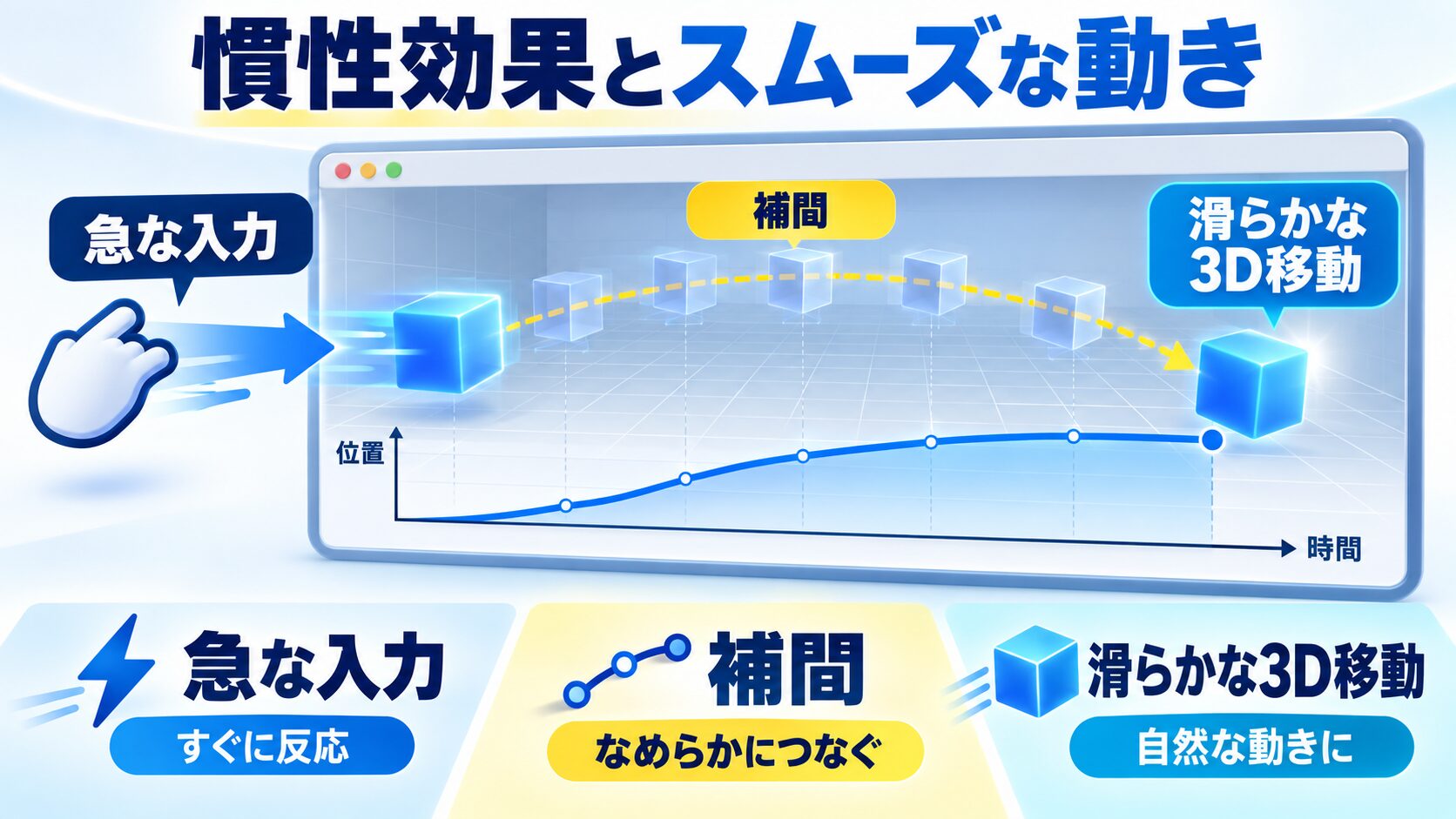
スクロールに遅延を持たせることで、より滑らかで心地よいアニメーションになります。
// 現在のスクロール位置とターゲット位置
let scrollY = 0;
let currentScrollY = 0;

window.addEventListener('scroll', () => {
  scrollY = window.pageYOffset;
});

// 線形補間関数
function lerp(start, end, factor) {
  return start + (end - start) * factor;
}

function animate() {
  requestAnimationFrame(animate);

  // 慣性効果:現在位置をターゲットに向けて徐々に移動
  // factorが小さいほど遅延が大きくなる(0.05 = かなり遅い、0.1 = 標準)
  currentScrollY = lerp(currentScrollY, scrollY, 0.08);

  // スクロール量に応じて回転(係数で動きを調整)
  cube.rotation.y = currentScrollY * 0.001;
  cube.rotation.x = currentScrollY * 0.0005;

  // Y座標の移動(パララックス効果)
  cube.position.y = -currentScrollY * 0.5; // 0.5倍の速度で移動

  renderer.render(scene, camera);
}

animate();// 複数のオブジェクトを作成
const objects = [];
// 背景のオブジェクト(遅く動く)
const bgGeometry = new THREE.SphereGeometry(100, 32, 32);
const bgMaterial = new THREE.MeshStandardMaterial({
color: 0x3366ff,
metalness: 0.3,
roughness: 0.7
});
const bgSphere = new THREE.Mesh(bgGeometry, bgMaterial);
bgSphere.position.z = -300;
scene.add(bgSphere);
objects.push({ mesh: bgSphere, speed: 0.2 }); // 0.2倍の速度
// 中景のオブジェクト(標準の速度)
const midGeometry = new THREE.TorusGeometry(80, 30, 16, 100);
const midMaterial = new THREE.MeshStandardMaterial({
color: 0xff6600,
metalness: 0.5,
roughness: 0.5
});
const midTorus = new THREE.Mesh(midGeometry, midMaterial);
midTorus.position.z = -100;
scene.add(midTorus);
objects.push({ mesh: midTorus, speed: 0.5 }); // 0.5倍の速度
// 前景のオブジェクト(速く動く)
const fgGeometry = new THREE.ConeGeometry(50, 100, 4);
const fgMaterial = new THREE.MeshStandardMaterial({
color: 0xff0066,
metalness: 0.7,
roughness: 0.3
});
const fgCone = new THREE.Mesh(fgGeometry, fgMaterial);
fgCone.position.z = 50;
scene.add(fgCone);
objects.push({ mesh: fgCone, speed: 1.2 }); // 1.2倍の速度
// アニメーションループ
let scrollY = 0;
let currentScrollY = 0;
window.addEventListener('scroll', () => {
scrollY = window.pageYOffset;
});
function animate() {
requestAnimationFrame(animate);
currentScrollY = lerp(currentScrollY, scrollY, 0.08);
// 各オブジェクトを異なる速度で動かす
objects.forEach(({ mesh, speed }) => {
mesh.position.y = -currentScrollY * speed;
mesh.rotation.y = currentScrollY * 0.001 * speed;
});
renderer.render(scene, camera);
}
animate();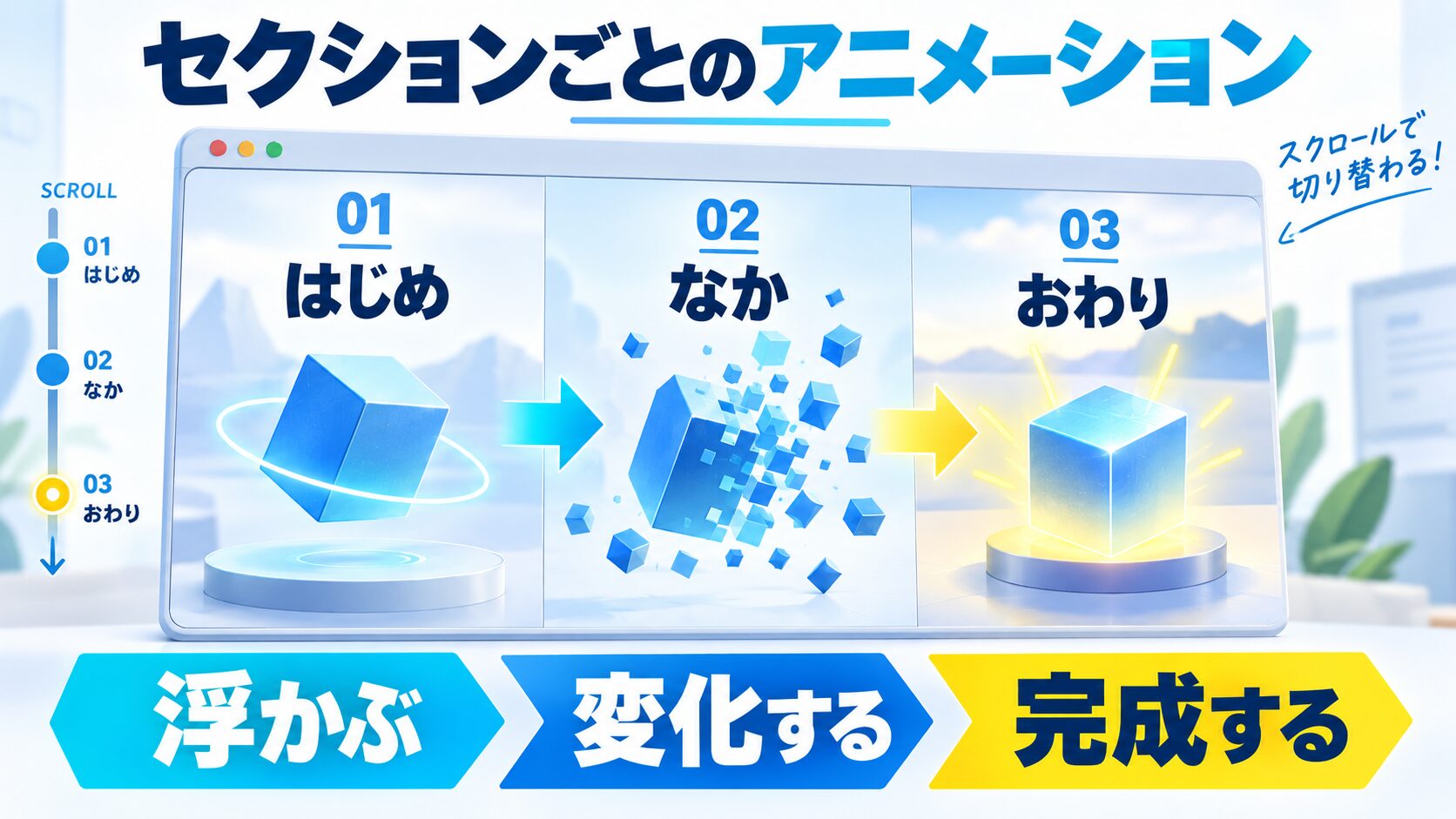
スクロール位置に応じて異なるアニメーションを実行する実装例です。
// セクションの定義
const sections = [
  {
    element: document.querySelector('#section1'),
    animation: (progress) => {
      // セクション1: 回転
      cube.rotation.y = progress * Math.PI * 2;
      cube.scale.set(1 + progress * 0.5, 1 + progress * 0.5, 1 + progress * 0.5);
    }
  },
  {
    element: document.querySelector('#section2'),
    animation: (progress) => {
      // セクション2: 色変化
      const color = new THREE.Color();
      color.setHSL(progress, 0.7, 0.5);
      cube.material.color = color;
    }
  },
  {
    element: document.querySelector('#section3'),
    animation: (progress) => {
      // セクション3: 位置移動
      cube.position.x = (progress - 0.5) * 400;
      cube.rotation.z = progress * Math.PI;
    }
  }
];

function getCurrentSection() {
  const scrollY = window.pageYOffset;
  const windowHeight = window.innerHeight;

  for (let i = 0; i < sections.length; i++) {
    const section = sections[i];
    const rect = section.element.getBoundingClientRect();
    const sectionTop = scrollY + rect.top;
    const sectionBottom = sectionTop + rect.height;

    // 現在のセクションを判定
    if (scrollY >= sectionTop - windowHeight && scrollY <= sectionBottom) {
      // セクション内の進行度を計算(0〜1)
      const progress = Math.max(0, Math.min(1,
        (scrollY - sectionTop + windowHeight) / (rect.height + windowHeight)
      ));

      return { section, progress, index: i };
    }
  }

  return null;
}

function animate() {
  requestAnimationFrame(animate);

  const current = getCurrentSection();

  if (current) {
    // 現在のセクションのアニメーションを実行
    current.section.animation(current.progress);
  }

  renderer.render(scene, camera);
}

animate();// Intersection Observerで表示領域を監視
let isVisible = false;
const observer = new IntersectionObserver((entries) => {
entries.forEach(entry => {
isVisible = entry.isIntersecting;
});
}, {
threshold: 0 // 1pxでも表示されたら検知
});
// canvas要素を監視
observer.observe(container);
// アニメーションループ
function animate() {
requestAnimationFrame(animate);
// 表示されている時のみレンダリング
if (isVisible) {
currentScrollY = lerp(currentScrollY, scrollY, 0.08);
cube.rotation.y = currentScrollY * 0.001;
cube.position.y = -currentScrollY * 0.5;
renderer.render(scene, camera);
}
}
animate();
// ❌ 悪い例:高ポリゴン
const highPolyGeometry = new THREE.SphereGeometry(100, 128, 128); // 16,384面

// ✅ 良い例:低ポリゴン
const lowPolyGeometry = new THREE.SphereGeometry(100, 32, 32); // 2,048面

// 見た目の差はほとんどないが、パフォーマンスは8倍向上// Frustum Culling(視界外のオブジェクトは描画しない)
// Three.jsは自動で行うが、手動で制御も可能
mesh.frustumCulled = true; // デフォルトはtrue
// Level of Detail(LOD)の活用
const lod = new THREE.LOD();
// 近距離用(高ポリゴン)
const highDetail = new THREE.Mesh(
new THREE.SphereGeometry(100, 64, 64),
material
);
lod.addLevel(highDetail, 0);
// 中距離用(中ポリゴン)
const mediumDetail = new THREE.Mesh(
new THREE.SphereGeometry(100, 32, 32),
material
);
lod.addLevel(mediumDetail, 300);
// 遠距離用(低ポリゴン)
const lowDetail = new THREE.Mesh(
new THREE.SphereGeometry(100, 16, 16),
material
);
lod.addLevel(lowDetail, 600);
scene.add(lod);// テクスチャのサイズは2のべき乗(256, 512, 1024, 2048...)
const textureLoader = new THREE.TextureLoader();
const texture = textureLoader.load('texture.jpg');
// ミップマップを有効化(デフォルトで有効)
texture.generateMipmaps = true;
// 異方性フィルタリング(品質向上)
texture.anisotropy = renderer.capabilities.getMaxAnisotropy();
// モバイル用には低解像度テクスチャを使用
const isMobile = /iPhone|iPad|iPod|Android/i.test(navigator.userAgent);
const texturePath = isMobile ? 'texture-512.jpg' : 'texture-2048.jpg';// ページ離脱時やコンポーネントアンマウント時にクリーンアップ
function cleanup() {
// ジオメトリの破棄
geometry.dispose();
// マテリアルの破棄
material.dispose();
// テクスチャの破棄
if (material.map) material.map.dispose();
// レンダラーの破棄
renderer.dispose();
// イベントリスナーの削除
window.removeEventListener('scroll', handleScroll);
window.removeEventListener('resize', handleResize);
}
// Reactの場合
useEffect(() => {
// セットアップ処理...
return () => {
cleanup();
};
}, []);
// GSAPのインストール
// npm install gsap

import gsap from 'gsap';
import { ScrollTrigger } from 'gsap/ScrollTrigger';

gsap.registerPlugin(ScrollTrigger);

// スクロールトリガーでアニメーション
gsap.to(cube.rotation, {
  y: Math.PI * 2,
  x: Math.PI,
  scrollTrigger: {
    trigger: '#section1',
    start: 'top top',
    end: 'bottom top',
    scrub: true, // スクロールに同期
    markers: true // デバッグ用マーカー(本番では削除)
  }
});

// 複数のプロパティを同時にアニメーション
gsap.to(cube.position, {
  x: 200,
  y: -500,
  scrollTrigger: {
    trigger: '#section2',
    start: 'top center',
    end: 'bottom center',
    scrub: 1 // スクロールに1秒の遅延
  }
});

// 色の変化
gsap.to(cube.material.color, {
  r: 1,
  g: 0,
  b: 0,
  scrollTrigger: {
    trigger: '#section3',
    start: 'top bottom',
    end: 'center center',
    scrub: true
  }
});// Lenisのインストール
// npm install @studio-freight/lenis
import Lenis from '@studio-freight/lenis';
// Lenisの初期化
const lenis = new Lenis({
duration: 1.2,
easing: (t) => Math.min(1, 1.001 - Math.pow(2, -10 * t)),
smooth: true
});
// スクロールイベントを監視
lenis.on('scroll', (e) => {
scrollY = e.scroll;
});
// アニメーションループに統合
function animate(time) {
requestAnimationFrame(animate);
lenis.raf(time);
currentScrollY = lerp(currentScrollY, scrollY, 0.08);
cube.rotation.y = currentScrollY * 0.001;
cube.position.y = -currentScrollY * 0.5;
renderer.render(scene, camera);
}
animate();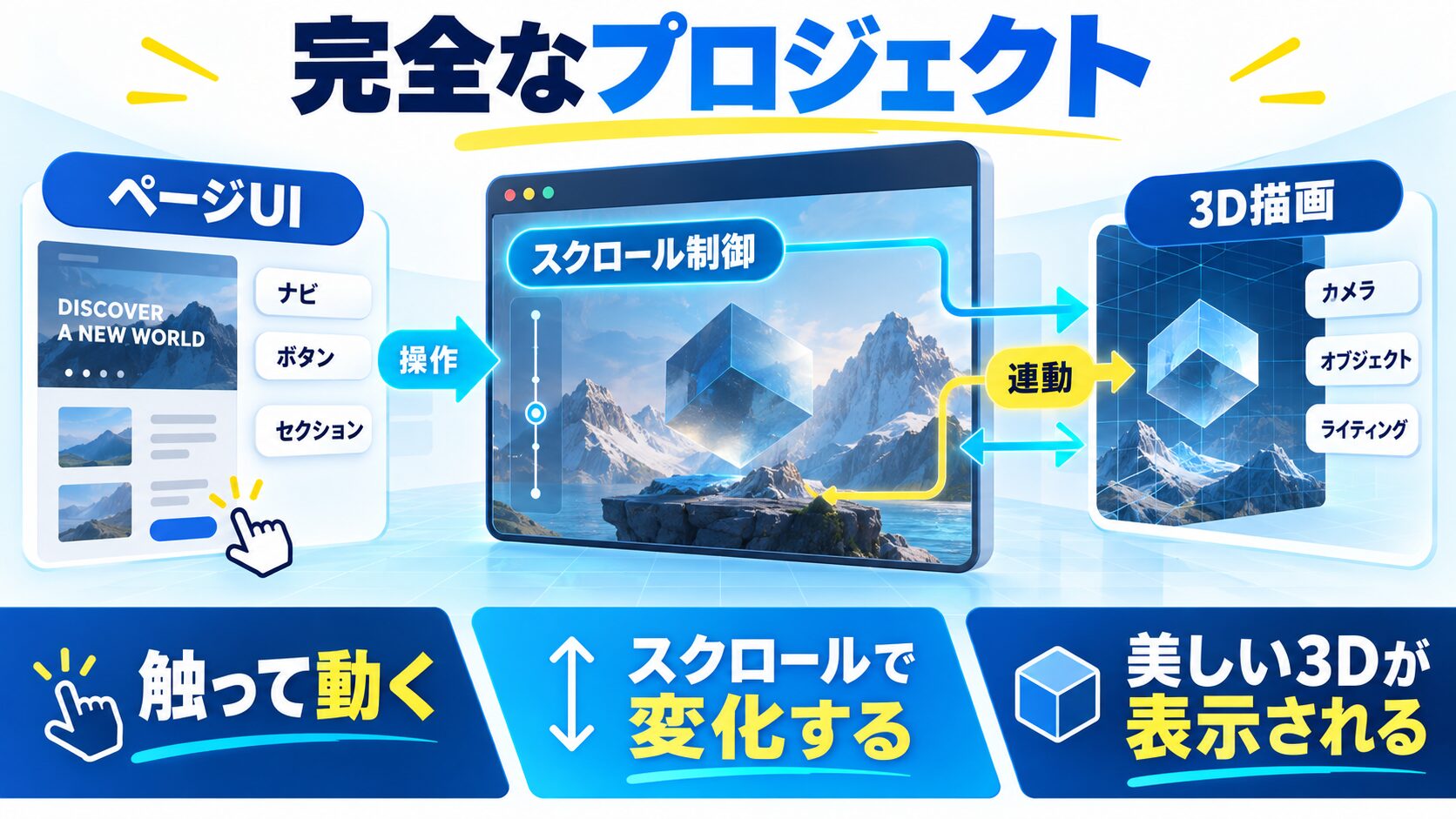
これまでの知識を統合した完全な実装例です。クラスベースで整理することで、保守性が高まります。
// main.js - 完全版
import * as THREE from 'three';
class ScrollAnimation {
constructor() {
this.scrollY = 0;
this.currentScrollY = 0;
this.isVisible = true;
this.init();
this.createObjects();
this.setupEventListeners();
this.animate();
}
init() {
// シーン
this.scene = new THREE.Scene();
this.scene.background = new THREE.Color(0x000000);
// カメラ
this.fov = 45;
this.camera = new THREE.PerspectiveCamera(
this.fov,
window.innerWidth / window.innerHeight,
0.1,
10000
);
this.updateCameraPosition();
// レンダラー
this.renderer = new THREE.WebGLRenderer({
antialias: true,
alpha: true
});
this.renderer.setSize(window.innerWidth, window.innerHeight);
this.renderer.setPixelRatio(Math.min(window.devicePixelRatio, 2));
const container = document.getElementById('canvas-container');
container.appendChild(this.renderer.domElement);
// ライト
const ambientLight = new THREE.AmbientLight(0xffffff, 0.5);
this.scene.add(ambientLight);
const directionalLight = new THREE.DirectionalLight(0xffffff, 0.8);
directionalLight.position.set(5, 5, 5);
this.scene.add(directionalLight);
}
updateCameraPosition() {
const fovRad = (this.fov * Math.PI) / 180;
const distance = window.innerHeight / (2 * Math.tan(fovRad / 2));
this.camera.position.z = distance;
}
createObjects() {
this.objects = [];
// 背景の球体
const bgGeometry = new THREE.SphereGeometry(150, 32, 32);
const bgMaterial = new THREE.MeshStandardMaterial({
color: 0x3366ff,
metalness: 0.3,
roughness: 0.7
});
const bgSphere = new THREE.Mesh(bgGeometry, bgMaterial);
bgSphere.position.z = -400;
this.scene.add(bgSphere);
this.objects.push({ mesh: bgSphere, speed: 0.2, rotationSpeed: 0.0002 });
// メインオブジェクト
const mainGeometry = new THREE.TorusKnotGeometry(80, 25, 128, 16);
const mainMaterial = new THREE.MeshStandardMaterial({
color: 0xff6600,
metalness: 0.5,
roughness: 0.5
});
const mainMesh = new THREE.Mesh(mainGeometry, mainMaterial);
this.scene.add(mainMesh);
this.objects.push({ mesh: mainMesh, speed: 0.6, rotationSpeed: 0.0008 });
// 前景のオブジェクト
const fgGeometry = new THREE.OctahedronGeometry(60);
const fgMaterial = new THREE.MeshStandardMaterial({
color: 0xff0066,
metalness: 0.7,
roughness: 0.3,
wireframe: true
});
const fgMesh = new THREE.Mesh(fgGeometry, fgMaterial);
fgMesh.position.z = 100;
this.scene.add(fgMesh);
this.objects.push({ mesh: fgMesh, speed: 1.0, rotationSpeed: 0.0012 });
}
setupEventListeners() {
// スクロールイベント
window.addEventListener('scroll', () => {
this.scrollY = window.pageYOffset;
});
// リサイズイベント
window.addEventListener('resize', () => {
this.camera.aspect = window.innerWidth / window.innerHeight;
this.updateCameraPosition();
this.camera.updateProjectionMatrix();
this.renderer.setSize(window.innerWidth, window.innerHeight);
this.renderer.setPixelRatio(Math.min(window.devicePixelRatio, 2));
});
// Intersection Observer
const observer = new IntersectionObserver((entries) => {
entries.forEach(entry => {
this.isVisible = entry.isIntersecting;
});
}, { threshold: 0 });
observer.observe(this.renderer.domElement);
}
lerp(start, end, factor) {
return start + (end - start) * factor;
}
animate() {
requestAnimationFrame(() => this.animate());
if (!this.isVisible) return;
// スクロールの慣性効果
this.currentScrollY = this.lerp(this.currentScrollY, this.scrollY, 0.08);
// 各オブジェクトの更新
this.objects.forEach(({ mesh, speed, rotationSpeed }) => {
mesh.position.y = -this.currentScrollY * speed;
mesh.rotation.y += rotationSpeed * 60; // 60fps想定
mesh.rotation.x = this.currentScrollY * 0.0003 * speed;
});
this.renderer.render(this.scene, this.camera);
}
// クリーンアップメソッド
dispose() {
window.removeEventListener('scroll', this.handleScroll);
window.removeEventListener('resize', this.handleResize);
this.objects.forEach(({ mesh }) => {
mesh.geometry.dispose();
mesh.material.dispose();
});
this.renderer.dispose();
}
}
// 初期化
const scrollAnimation = new ScrollAnimation(); 生徒
生徒Three.jsでスクロール連動アニメーション、だいぶわかってきました!
 ペン博士
ペン博士その調子じゃ!まずはシンプルな実装から始めて、徐々に慣性効果やパララックスを追加していくと良いぞ。パフォーマンスにも気を配ることを忘れずにな!
生徒わかりました!早速自分のポートフォリオサイトに実装してみます!

動作しますが、モバイルは GPU パワーが限られるためパフォーマンス最適化が必須です。ポリゴン数を低く抑え、テクスチャを低解像度(512px 以下)にし、renderer.setPixelRatio(Math.min(window.devicePixelRatio, 2)) で Retina 対応しつつ負荷を制限してください。
シンプルなスクロール連動なら生の scroll イベント+Lerp で十分です。セクションごとに複雑なタイムラインを組みたい場合は GSAP ScrollTrigger が適しています。Lenis はスムーススクロール自体を制御するライブラリなので、Three.js や GSAP と組み合わせて使います。
使えます。コンポーネントのマウント時に Three.js の初期化を行い、アンマウント時に dispose() でクリーンアップするのが基本パターンです。React Three Fiber(@react-three/fiber)を使うと、Three.js を React コンポーネントとして宣言的に記述できます。
0.05〜0.15 の範囲が一般的です。0.05 はかなりゆっくりした追従、0.15 はほぼ即時に近い動きになります。ユーザーが快適に感じる遅延は 0.07〜0.10 程度が多いですが、演出意図によって調整してください。
requestAnimationFrame は環境によって 120fps 以上で動作する場合があります。clock.getDelta() で経過時間を取得し、アニメーション量を時間ベースで計算するか、renderer.setAnimationLoop() を利用してください。フレームレートに依存しない実装にすることで、高リフレッシュレート端末でも意図した速度で動きます。

本記事では、Three.js を使ったスクロール連動アニメーションの実装方法を基礎から応用まで解説しました。
WithCode で学んだ Web 制作の基礎知識に Three.js の 3D 技術を組み合わせれば、印象的でインタラクティブな Web サイトを構築できます。まずはシンプルな実装から始めて、徐々に高度なテクニックを取り入れていきましょう。


目的に合わせて選べる「AI副業」「AI転職」「AI活用」の3コースを用意。副収入・キャリアチェンジ・日常の生産性アップまで、あなたのゴールに合わせてAIを学べます。
会員登録はカンタン30秒で完了します。まずは公式LINEから、無料でAI学習をスタートしましょう!
公式サイト より
今すぐ
無料カウンセリング
を予約!