










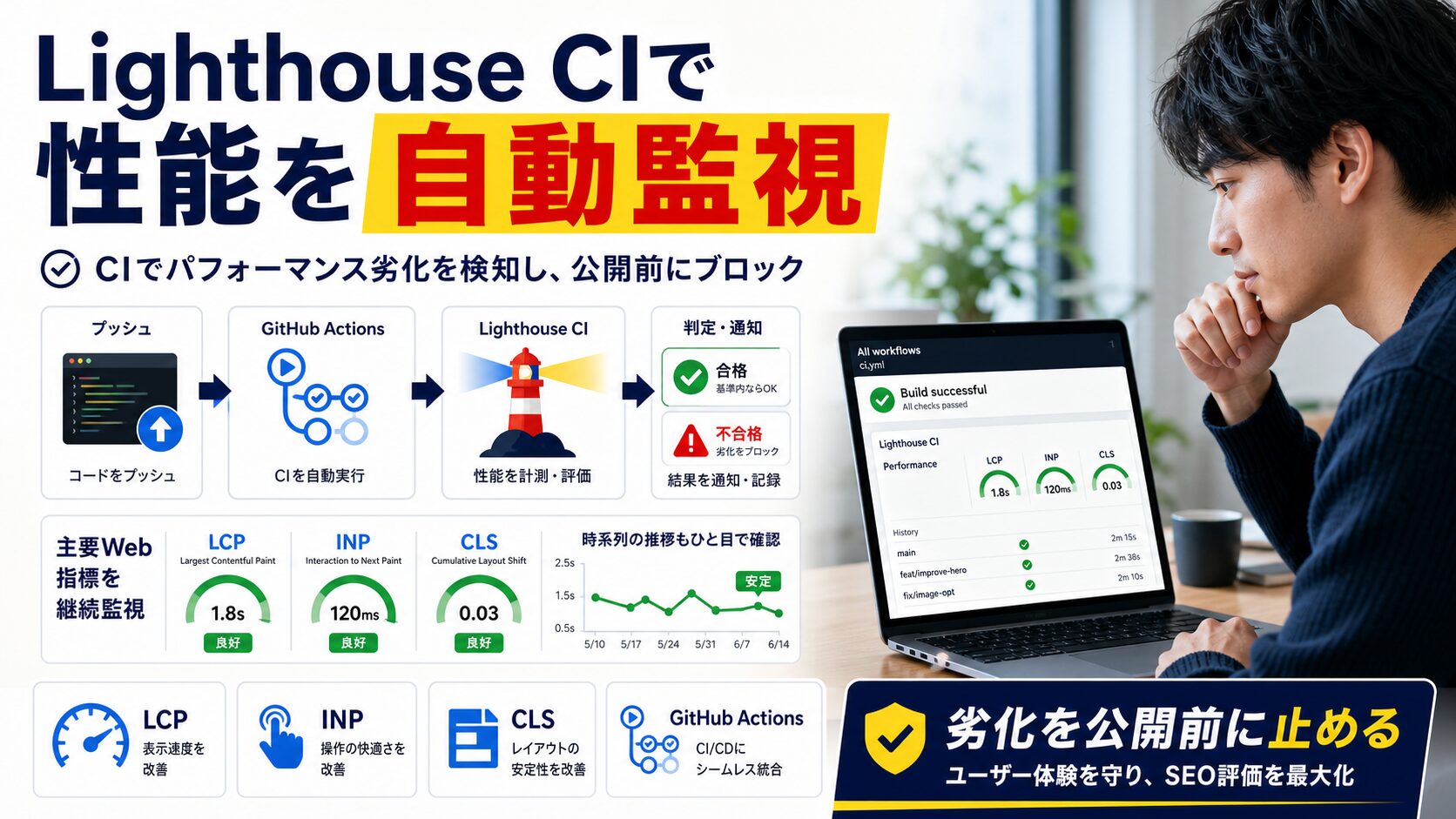
Lighthouse CI(LHCI)は、GoogleのLighthouseをコマンドラインで実行し、CI/CDパイプラインに組み込むためのツールで、GitHubにコードをpushするたびに自動でパフォーマンスを計測できます。閾値チェック機能により基準を満たさない場合はビルドを失敗させ、LCP・FID・CLSなどのCore Web Vitalsを継続的に監視できます。導入はnpmでのインストール、lighthouserc.jsonの作成、package.jsonへのスクリプト追加という手順で進め、GitHub Actionsと連携するとPull Request時に自動実行して結果をコメントで共有できます。
 生徒
生徒博士、Webサイトのパフォーマンスをチェックするために毎回手動でLighthouseを実行するのが大変なんです。もっと自動化できる方法はないですか?
 ペン博士
ペン博士それなら「Lighthouse CI」を使うんじゃ!GitHubにコードをpushするたびに自動でパフォーマンスをチェックしてくれるんじゃよ。今回はLighthouse CIの導入から、GitHub Actionsとの連携、Core Web Vitalsの自動監視まで、実践的な内容を詳しく解説するぞい!
 生徒
生徒ありがとうございます!よろしくお願いします!
Webサイトのパフォーマンス測定において、GoogleのLighthouseは非常に強力なツールです。しかし、手動での計測には以下のような課題があります:
本記事では、Lighthouse CIを使ったパフォーマンス自動計測の実装方法について、導入から実践的な活用まで、実例を踏まえて徹底的に解説します。
詳しくはこちらの記事をご覧ください。

片山さんの主な制作実績はこちら
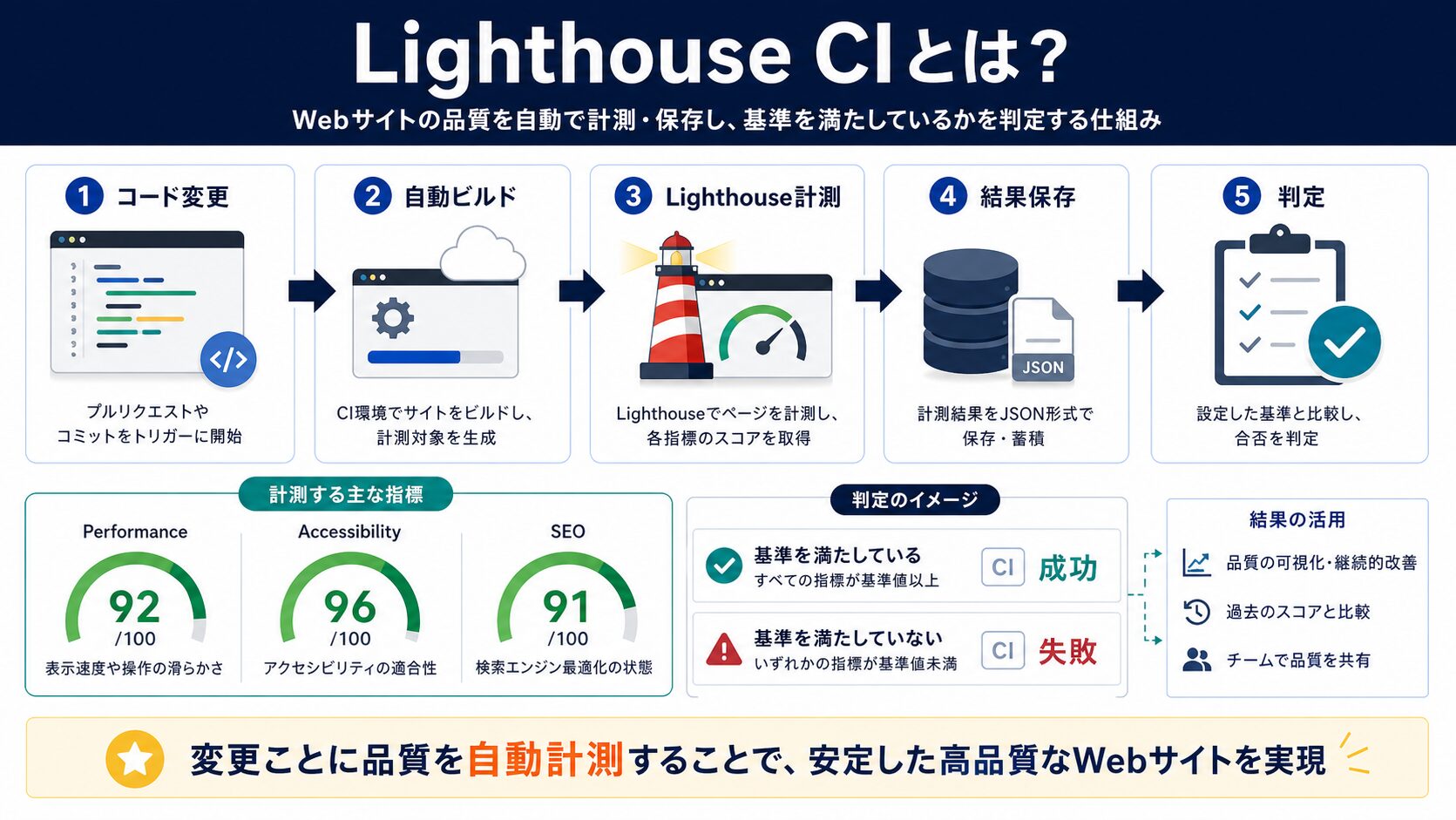
Lighthouse CI(LHCI)は、GoogleのLighthouseをコマンドラインで実行し、CI/CDパイプラインに組み込むためのツールです。
通常のLighthouseとの違い:
| 機能 | 通常のLighthouse | Lighthouse CI |
|---|---|---|
| 実行方法 | Chrome DevTools / CLI | CLI / CI/CD自動実行 |
| 実行タイミング | 手動 | 自動(コミット/PR時) |
| 複数ページ測定 | 1ページずつ手動 | 設定ファイルで一括指定 |
| 閾値チェック | 目視確認 | 自動判定・ビルド失敗 |
| 履歴管理 | なし | Lighthouse Server / Temporary Public Storage |
Lighthouse CIは以下の機能を提供します:
Lighthouse CIでは、以下の指標を自動で測定できます:
 生徒
生徒Lighthouse CIを導入するメリットって何ですか?
 ペン博士
ペン博士うむ。ここでは、Lighthouse CIを導入するメリットについて解説するぞ!
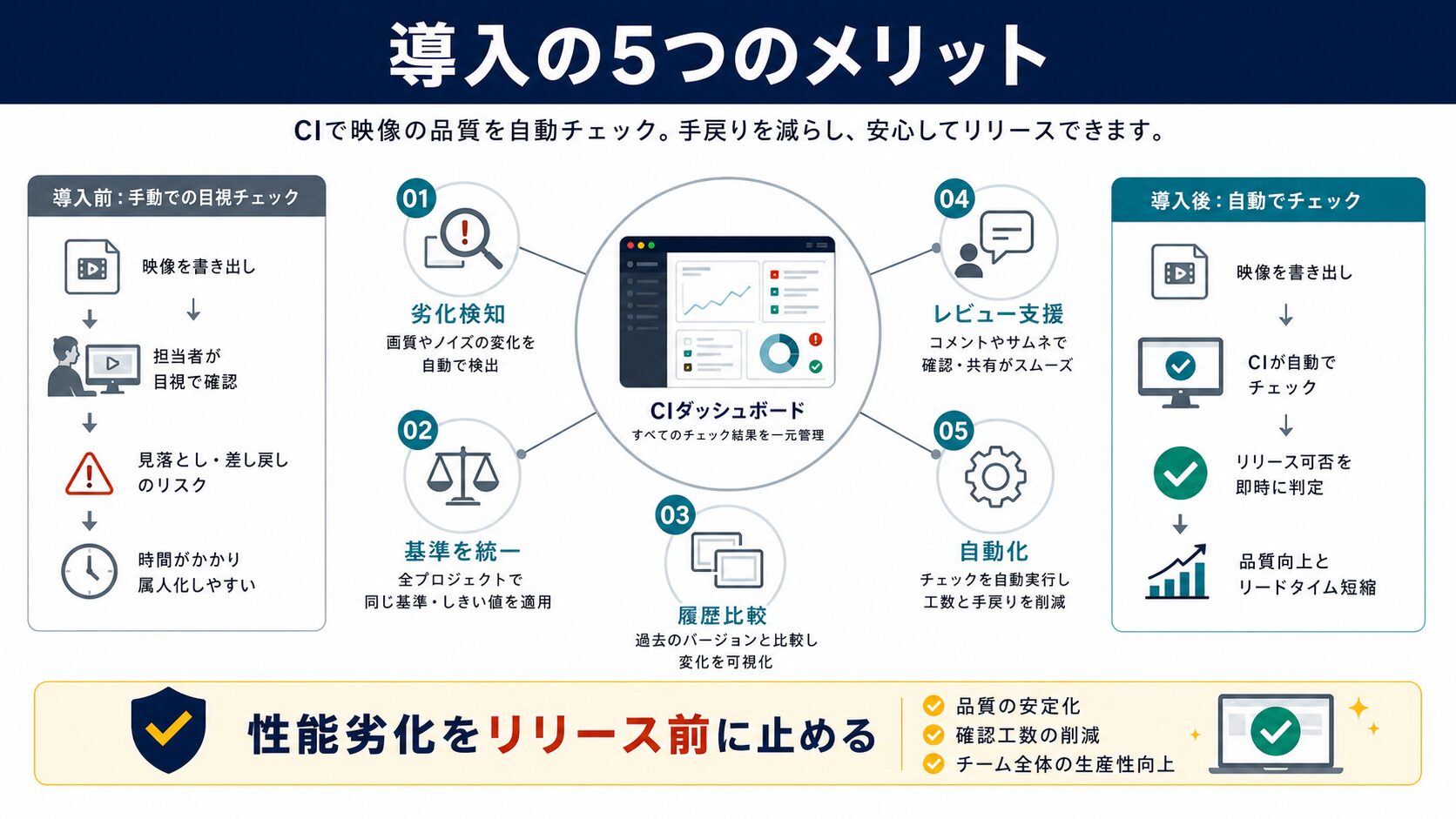
コードをコミットするたびに自動でチェックされるため、パフォーマンスが悪化した場合にすぐに気づけます。
従来の方法:
Lighthouse CI導入後:
GoogleのSEOランキング要因であるCore Web Vitals(LCP、FID、CLS)を常に監視できます。
設定例:
// lighthouserc.json
{
  "ci": {
    "assert": {
      "assertions": {
        "largest-contentful-paint": ["error", {"maxNumericValue": 2500}],
        "first-input-delay": ["error", {"maxNumericValue": 100}],
        "cumulative-layout-shift": ["error", {"maxNumericValue": 0.1}]
      }
    }
  }
}これにより、SEOに悪影響を与える前に問題を検知できます。
Pull Requestにパフォーマンスレポートが自動で追加されるため、チーム全員がパフォーマンスを意識するようになります。
レビュー時のチェック項目:
手動でLighthouseを実行する必要がなくなり、計測にかかる時間を大幅削減できます。
| 作業 | 手動 | Lighthouse CI |
|---|---|---|
| 1ページの計測 | 約3分 | 自動(0分) |
| 10ページの計測 | 約30分 | 自動(0分) |
| 月間計測回数 | 数回(忘れがち) | コミットごと(数十〜数百回) |
 生徒
生徒メリットは分かったんですけど、実際どうやって導入するんですか?
 ペン博士
ペン博士いい質問じゃ。ここでは、実際にLighthouse CIをプロジェクトに導入する手順を詳しく解説するぞ!
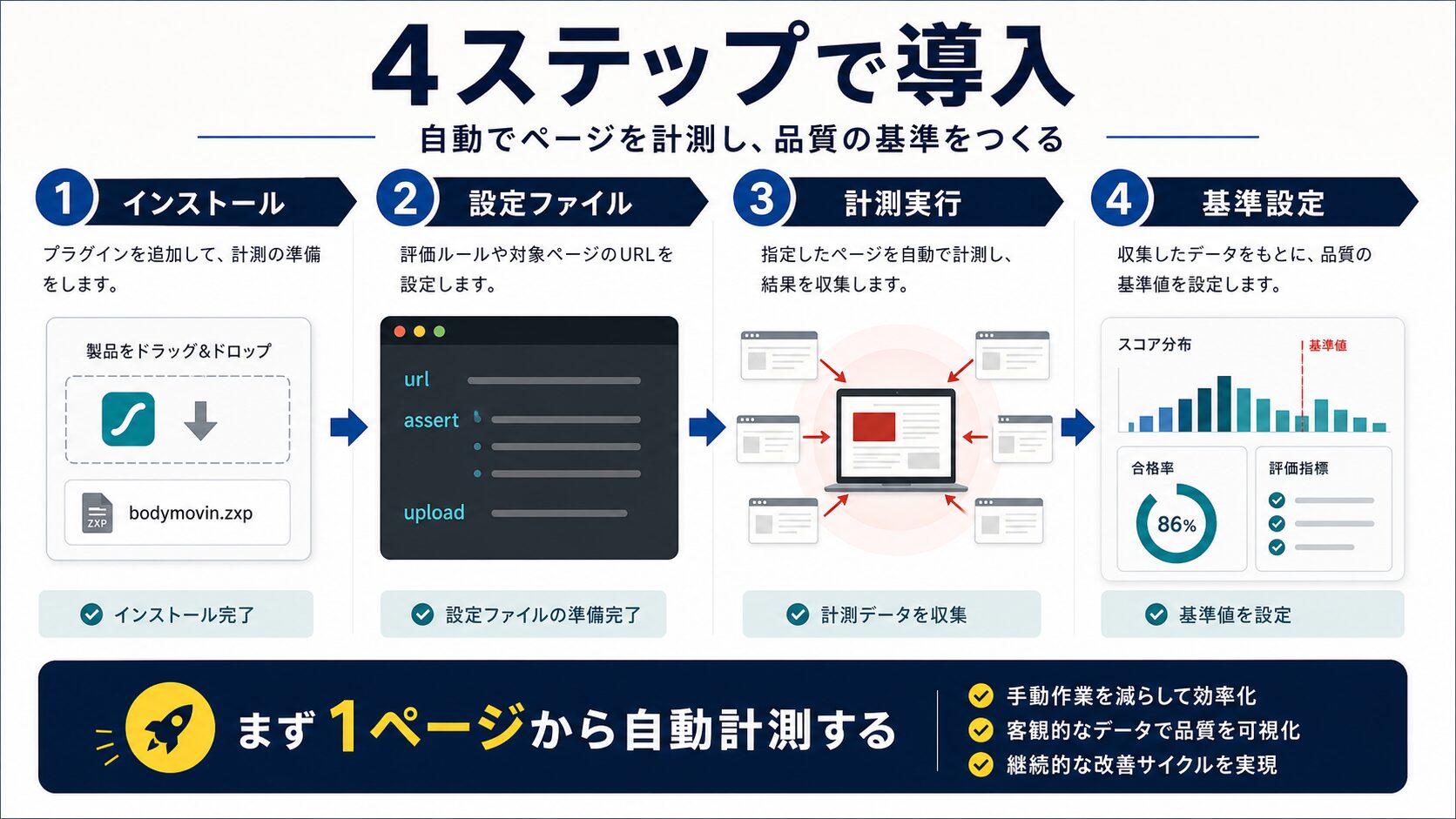
npmまたはyarnでインストールします。
# npmの場合
npm install -D @lhci/cli
# yarnの場合
yarn add -D @lhci/cli
package.jsonのdevDependenciesに追加されます:
// package.json
{
  "devDependencies": {
    "@lhci/cli": "^0.13.0"
  }
}プロジェクトルートにlighthouserc.jsonを作成します。
// lighthouserc.json
{
  "ci": {
    "collect": {
      // 計測回数(複数回実行して平均を取る)
      "numberOfRuns": 3,
      // ビルド後の静的ファイルがあるディレクトリ
      "staticDistDir": "./build",
      // または、開発サーバーを起動する場合
      // "startServerCommand": "npm run start",
      // 計測するURL(複数指定可能)
      "url": [
        "http://localhost:3000/",
        "http://localhost:3000/about",
        "http://localhost:3000/contact"
      ]
    },
    "assert": {
      // スコアやメトリクスの閾値を設定
      "assertions": {
        "categories:performance": ["error", {"minScore": 0.9}],
        "categories:accessibility": ["warn", {"minScore": 0.9}],
        "categories:best-practices": ["warn", {"minScore": 0.9}],
        "categories:seo": ["warn", {"minScore": 0.9}],
        // Core Web Vitals
        "largest-contentful-paint": ["error", {"maxNumericValue": 2500}],
        "first-input-delay": ["error", {"maxNumericValue": 100}],
        "cumulative-layout-shift": ["error", {"maxNumericValue": 0.1}],
        // その他のメトリクス
        "first-contentful-paint": ["warn", {"maxNumericValue": 2000}],
        "speed-index": ["warn", {"maxNumericValue": 3000}],
        "total-blocking-time": ["warn", {"maxNumericValue": 300}]
      }
    },
    "upload": {
      // 結果の保存先(オプション)
      "target": "temporary-public-storage"
    }
  }
}collect(計測設定):
numberOfRuns:実行回数(3〜5回推奨)staticDistDir:静的ファイルのディレクトリstartServerCommand:サーバー起動コマンドurl:計測対象のURL配列assert(閾値設定):
["error", {...}]:基準未達時にビルド失敗["warn", {...}]:基準未達時に警告のみminScore:最低スコア(0〜1の範囲)maxNumericValue:最大値(ミリ秒単位)// package.json
{
"scripts": {
"build": "next build",
"lighthouse": "lhci autorun",
"lighthouse:collect": "lhci collect",
"lighthouse:assert": "lhci assert",
"lighthouse:upload": "lhci upload"
}
}コマンドの説明:
lhci autorun:collect、assert、uploadを一括実行lhci collect:Lighthouseを実行して結果を収集lhci assert:収集した結果を閾値と比較lhci upload:結果をサーバーにアップロード# ビルド
npm run build
# Lighthouse CI実行
npm run lighthouse実行すると、以下のような出力が表示されます:
Collecting Lighthouse results
Running Lighthouse 3 time(s) on http://localhost:3000/
   Run #1...done.
   Run #2...done.
   Run #3...done.
Done collecting Lighthouse results.
Asserting against Lighthouse results
   ✓ categories:performance: minScore assertion passed
   ✓ largest-contentful-paint: maxNumericValue assertion passed
   ✓ cumulative-layout-shift: maxNumericValue assertion passed
All assertions passed!
Uploading Lighthouse results
✓ Uploaded to https://storage.googleapis.com/...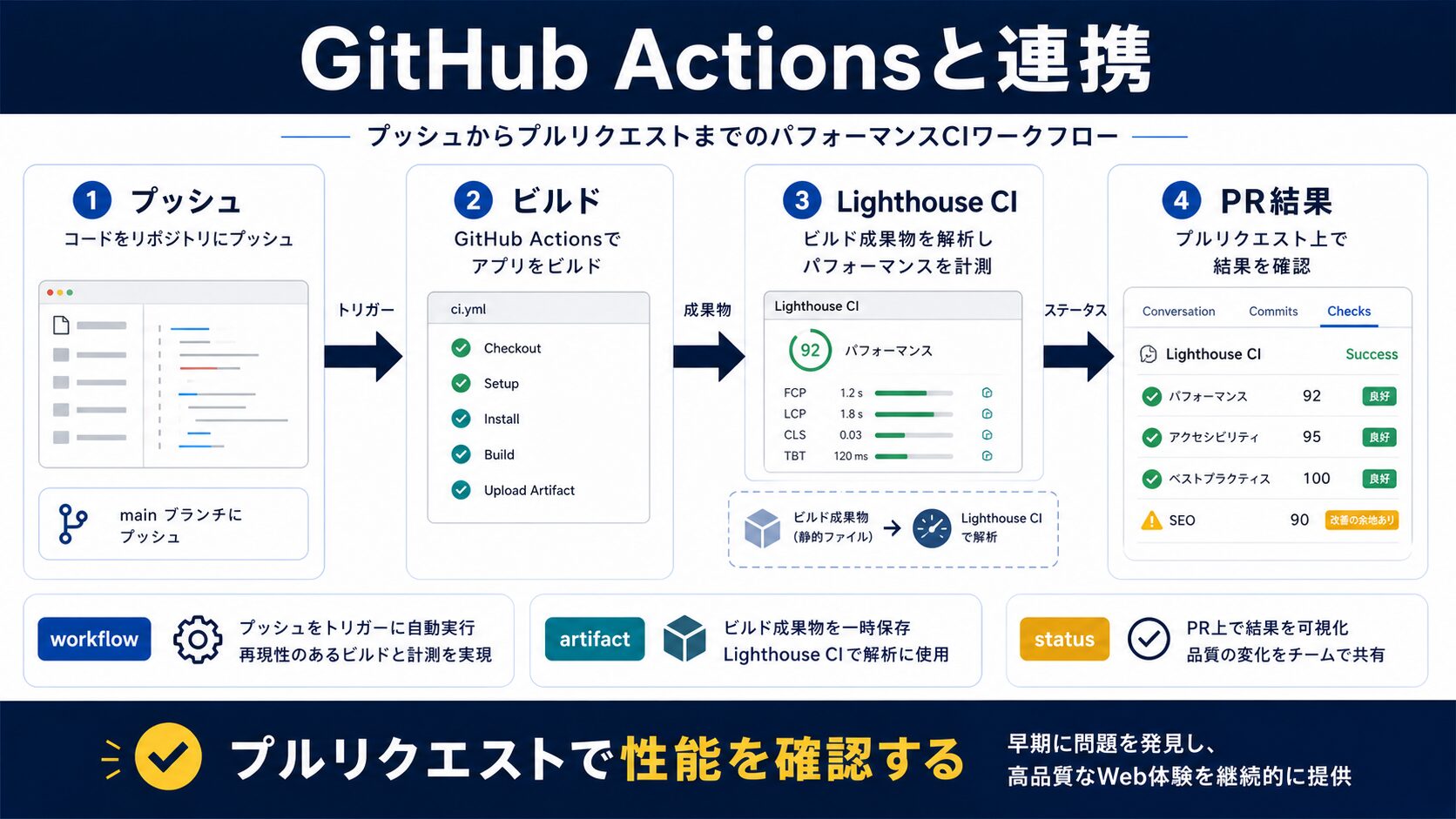 ペン博士
ペン博士Lighthouse CIの本領は自動化してこそじゃ。特にGitHub Actionsとの相性が良い。ここでは、GitHub Actionsを使って、自動でLighthouse CIを実行する方法を解説するぞ!
生徒そうなんですね!よろしくお願いします!
.github/workflows/lighthouse-ci.ymlを作成します。
# .github/workflows/lighthouse-ci.yml
name: Lighthouse CI
on:
  pull_request:
    branches: [main, develop]
  push:
    branches: [main]
jobs:
  lighthouse-ci:
    runs-on: ubuntu-latest
    steps:
      # リポジトリをチェックアウト
      - uses: actions/checkout@v3
      # Node.jsのセットアップ
      - name: Setup Node.js
        uses: actions/setup-node@v3
        with:
          node-version: 18
          cache: 'npm'
      # 依存関係のインストール
      - name: Install dependencies
        run: npm ci
      # ビルド
      - name: Build project
        run: npm run build
      # Lighthouse CI実行
      - name: Run Lighthouse CI
        run: npm run lighthouse
        env:
          LHCI_GITHUB_APP_TOKEN: ${{ secrets.LHCI_GITHUB_APP_TOKEN }}
      # 結果をアーティファクトとして保存
      - name: Upload Lighthouse reports
        uses: actions/upload-artifact@v3
        if: always()
        with:
          name: lighthouse-reports
path: .lighthouseci/Lighthouse CIの結果をPull Requestにコメントとして追加する設定:
# .github/workflows/lighthouse-ci.yml(続き)
jobs:
  lighthouse-ci:
    # ...(前述の設定)
    steps:
      # ...(前述のステップ)
      # Lighthouse CI実行(コメント機能付き)
      - name: Run Lighthouse CI with comment
        uses: treosh/lighthouse-ci-action@v10
        with:
          urls: |
            http://localhost:3000
            http://localhost:3000/about
          uploadArtifacts: true
          temporaryPublicStorage: true
          runs: 3
この設定により、Pull Requestに以下のようなコメントが自動追加されます:
## Lighthouse CI Results
### http://localhost:3000
| Category | Score |
|----------|-------|
| Performance | 95 +2 |
| Accessibility | 100 |
| Best Practices | 92 -3 |
| SEO | 100 |
**Core Web Vitals**
- LCP: 1.8s
- FID: 15ms
- CLS: 0.05
[View full report](https://storage.googleapis.com/...)
本番環境、ステージング環境など、複数の環境で計測する設定:
# .github/workflows/lighthouse-ci.yml
name: Lighthouse CI - Multi Environment
on:
  pull_request:
    branches: [main]
jobs:
  lighthouse-ci:
    runs-on: ubuntu-latest
    strategy:
      matrix:
        environment: [staging, production]
    steps:
      - uses: actions/checkout@v3
      - uses: actions/setup-node@v3
        with:
          node-version: 18
      - name: Install dependencies
        run: npm ci
      - name: Run Lighthouse CI - ${{ matrix.environment }}
        uses: treosh/lighthouse-ci-action@v10
        with:
          urls: |
            ${{ matrix.environment == 'staging' && 'https://staging.example.com' || 'https://example.com' }}
          uploadArtifacts: true
runs: 3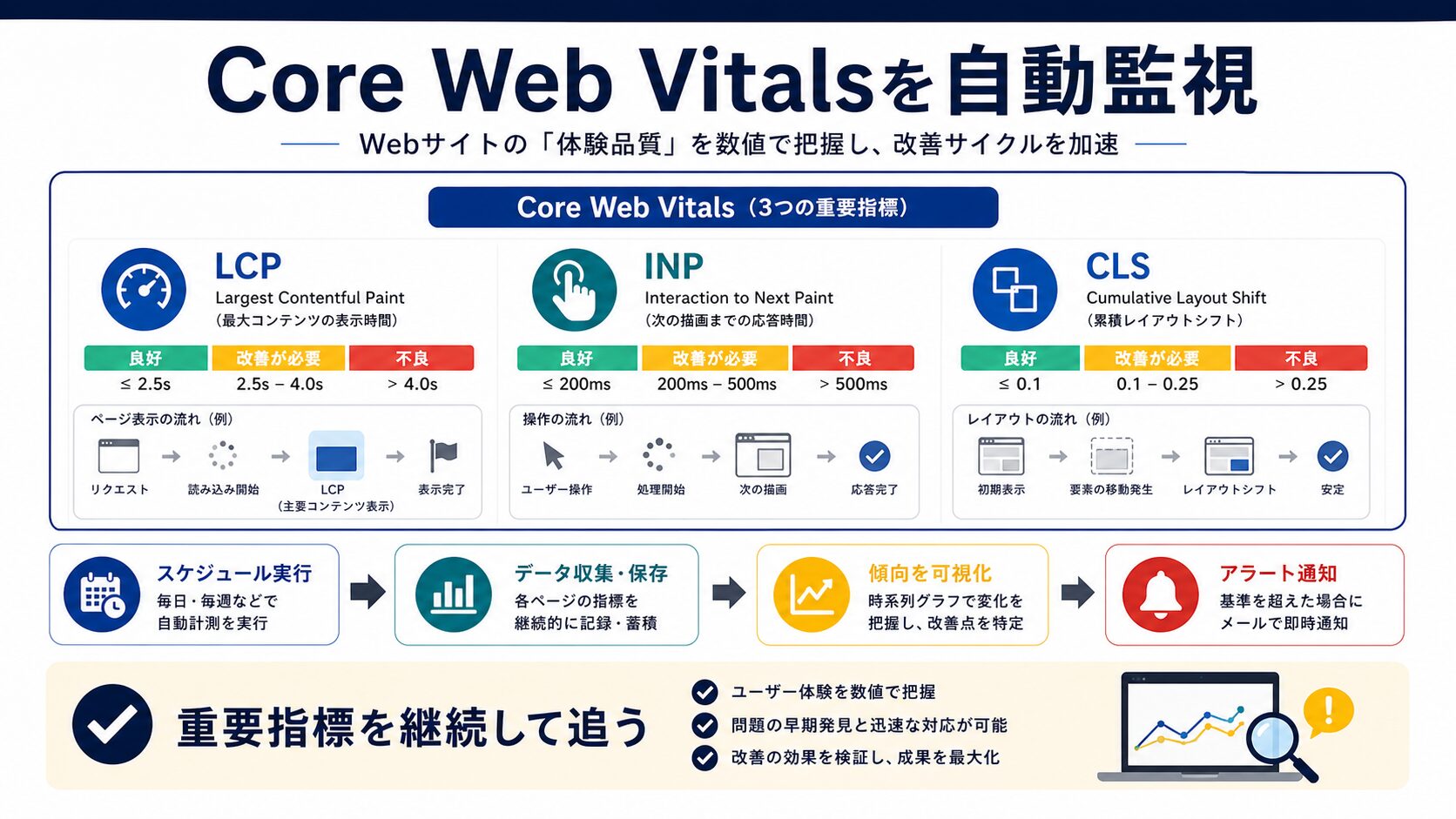 生徒
生徒Lighthouseってスコア見るだけじゃダメなんですか?
 ペン博士
ペン博士それは違うぞ。継続的に監視しないと意味がない。特にCore Web Vitalsは別物と考えた方がいい。ここでは、GoogleのSEOランキング要因であるCore Web Vitalsを継続的に監視する方法を解説するぞ!
Core Web Vitalsは、ユーザーエクスペリエンスを測定する3つの指標です:
意味: ページの主要コンテンツが表示されるまでの時間
良好な値: 2.5秒以内
改善方法:
意味: ユーザーが最初にページを操作してから、ブラウザが応答するまでの時間
良好な値: 100ミリ秒以内
改善方法:
意味: ページ読み込み中のレイアウトのずれ
良好な値: 0.1以下
改善方法:
// lighthouserc.json
{
  "ci": {
    "assert": {
      "preset": "lighthouse:no-pwa",
      "assertions": {
        // Core Web Vitals(厳格)
        "largest-contentful-paint": [
          "error",
          {"maxNumericValue": 2000, "aggregationMethod": "optimistic"}
        ],
        "first-input-delay": [
          "error",
          {"maxNumericValue": 80}
        ],
        "cumulative-layout-shift": [
          "error",
          {"maxNumericValue": 0.08}
        ],
        // 追加のパフォーマンス指標
        "first-contentful-paint": [
          "warn",
          {"maxNumericValue": 1500}
        ],
        "speed-index": [
          "warn",
          {"maxNumericValue": 2500}
        ],
        "total-blocking-time": [
          "error",
          {"maxNumericValue": 200}
        ],
        "interactive": [
          "warn",
          {"maxNumericValue": 3500}
        ],
        // リソースサイズ
        "resource-summary:script:size": [
          "warn",
          {"maxNumericValue": 300000}
        ],
        "resource-summary:stylesheet:size": [
          "warn",
          {"maxNumericValue": 50000}
        ],
        "resource-summary:image:size": [
          "warn",
          {"maxNumericValue": 500000}
        ],
        // カテゴリースコア
        "categories:performance": ["error", {"minScore": 0.95}],
        "categories:accessibility": ["warn", {"minScore": 0.95}],
        "categories:best-practices": ["warn", {"minScore": 0.9}],
        "categories:seo": ["error", {"minScore": 0.95}]
      }
    }
  }
}Slackに通知を送る設定:
# .github/workflows/lighthouse-ci.yml
jobs:
  lighthouse-ci:
    steps:
      # ...(前述のステップ)
      - name: Run Lighthouse CI
        id: lighthouse
        continue-on-error: true
        run: npm run lighthouse
      # 失敗時にSlack通知
      - name: Notify Slack on failure
        if: steps.lighthouse.outcome == 'failure'
        uses: slackapi/slack-github-action@v1
        with:
          payload: |
            {
              "text": "Lighthouse CI Failed",
              "blocks": [
                {
                  "type": "section",
                  "text": {
                    "type": "mrkdwn",
                    "text": "*Lighthouse CI failed on PR #${{ github.event.number }}*\n\nCore Web Vitals did not meet the threshold.\n\n<${{ github.event.pull_request.html_url }}|View Pull Request>"
                  }
                }
              ]
            }
        env:
SLACK_WEBHOOK_URL: ${{ secrets.SLACK_WEBHOOK_URL }}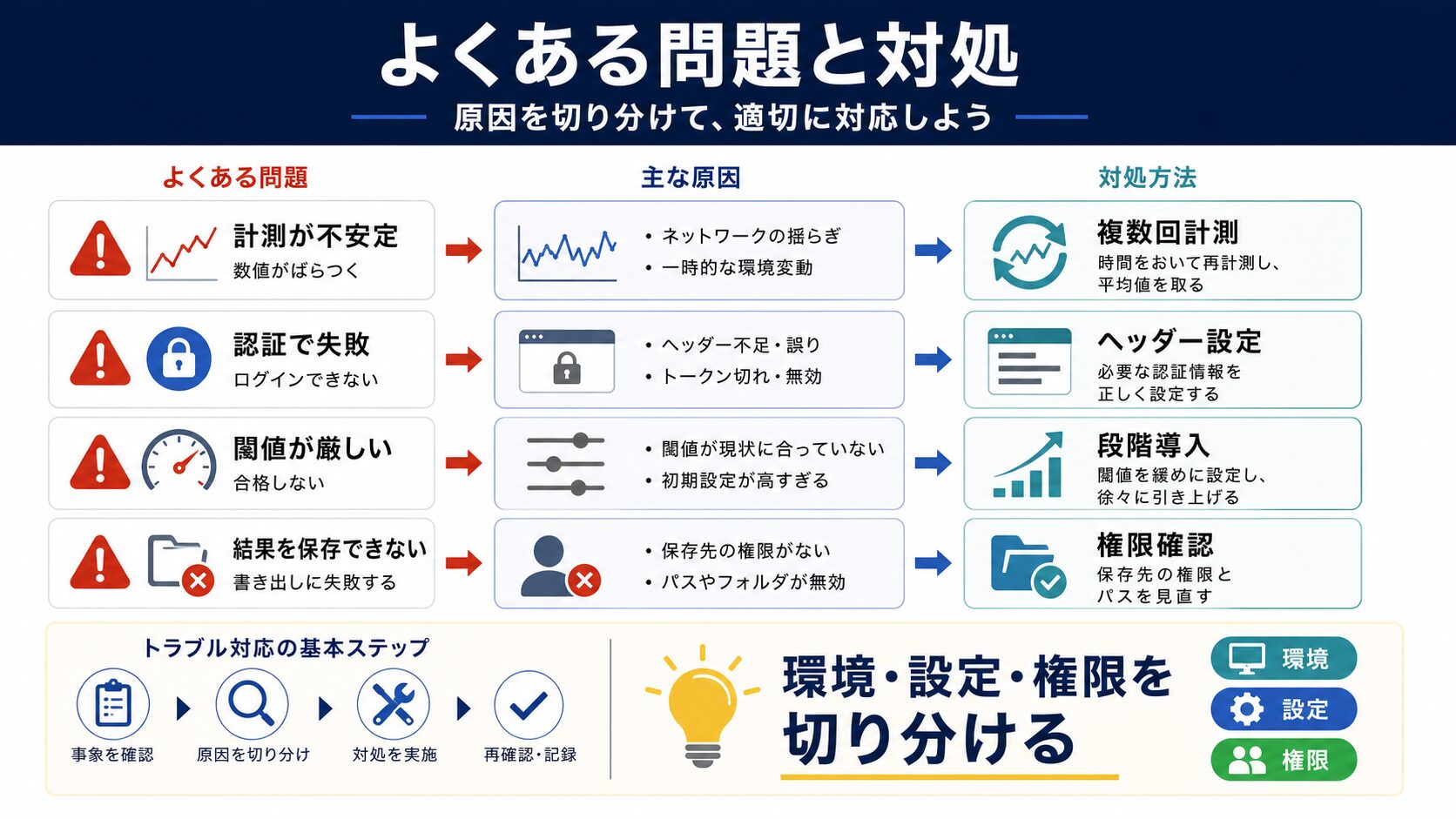 生徒
生徒Lighthouse CI運用するにあたってトラブルシューティングのことも知りたいです!
ペン博士うむ。ここでは、主なトラブルシューティングを3つ紹介するぞい!
症状: 同じページなのに、実行するたびにスコアが大きく変わる
原因:
解決策:
// lighthouserc.json
{
  "ci": {
    "collect": {
      // 実行回数を増やす(3〜5回推奨)
      "numberOfRuns": 5,
      // 集計方法を指定
      "settings": {
        // ネットワークスロットリングを有効化
        "throttlingMethod": "simulate",
        "throttling": {
          "rttMs": 40,
          "throughputKbps": 10240,
          "cpuSlowdownMultiplier": 1
        }
      }
    },
    "assert": {
      "assertions": {
        // 楽観的な値(最良の実行結果)を使用
        "largest-contentful-paint": [
          "error",
          {
            "maxNumericValue": 2500,
            "aggregationMethod": "optimistic"
          }
        ]
      }
    }
  }
}症状: Lighthouse CI実行中にGitHub Actionsがタイムアウト
解決策:
# .github/workflows/lighthouse-ci.yml
jobs:
  lighthouse-ci:
    # タイムアウトを延長
    timeout-minutes: 30
    steps:
      # キャッシュを活用して高速化
      - name: Cache dependencies
        uses: actions/cache@v3
        with:
          path: ~/.npm
          key: ${{ runner.os }}-node-${{ hashFiles('**/package-lock.json') }}
      # ビルドキャッシュも活用
      - name: Cache build
        uses: actions/cache@v3
        with:
          path: .next/cache
key: ${{ runner.os }}-nextjs-${{ hashFiles('**/package-lock.json') }}症状: ローカル/CIのスコアは良好だが、本番環境のスコアが低い
原因:
解決策:
// lighthouserc.json
{
  "ci": {
    "collect": {
      // 本番環境のURLで計測
      "url": [
        "https://example.com",
        "https://example.com/about"
      ],
      // 本番環境と同じヘッダーを送信
      "settings": {
        "extraHeaders": {
          "Cookie": "session=...",
          "Authorization": "Bearer ..."
        }
      }
    }
  }
}
また、本番環境専用のワークフローを作成:
# .github/workflows/lighthouse-production.yml
name: Lighthouse CI - Production
on:
  schedule:
    # 毎日午前3時に実行
    - cron: '0 3 * * *'
  workflow_dispatch:
jobs:
  lighthouse-production:
    runs-on: ubuntu-latest
    steps:
      - uses: actions/checkout@v3
      - name: Run Lighthouse on production
        uses: treosh/lighthouse-ci-action@v10
        with:
          urls: |
            https://example.com
            https://example.com/about
            https://example.com/products
          uploadArtifacts: true
runs: 5Lighthouse CIを使えば、パフォーマンスを常に監視できるんですね!これならユーザーに快適なサイトを提供し続けられます。
ペン博士その通りじゃ!一度設定すれば、あとは自動で監視してくれるから、パフォーマンスの劣化に気づけるんじゃ。SEOにも良い影響があるぞい!
 生徒
生徒早速試してみます!ありがとうございました!
本記事では、Lighthouse CIを使ったパフォーマンス自動計測の実装方法について、実践的な内容を解説しました。
重要なポイントは以下の通りです。
・Lighthouse CIとは:Lighthouseをコマンドラインで実行し、CI/CDに組み込めるツール
・導入のメリット:パフォーマンス劣化の早期発見、Core Web Vitalsの継続監視、チーム全体での品質向上
・導入方法:npm install、lighthouserc.json作成、package.jsonにスクリプト追加
・GitHub Actions連携:Pull Request時に自動実行、結果をコメントで共有
・Core Web Vitals監視:LCP、FID、CLSの閾値設定で自動判定
・トラブルシューティング:スコアの変動対策、タイムアウト対応、本番環境との差異解消
Lighthouse CIを導入することで、パフォーマンスを継続的に監視し、ユーザーエクスペリエンスを常に高く保つことができます。
まずは小規模なプロジェクトから始めて、lighthouserc.jsonの基本設定を試してみましょう。慣れてきたら、GitHub Actionsとの連携や、より厳格な閾値設定にチャレンジしてください。
A. 通常のLighthouseはChrome DevToolsやCLIで手動実行しますが、Lighthouse CIはCI/CDで自動実行できます。実行タイミングはコミットやPR時に自動化され、複数ページを設定ファイルで一括指定でき、閾値を下回るとビルドを失敗させます。また計測結果を保存して過去のスコアと比較できる点も異なります。
A. まずnpmまたはyarnでLighthouse CIをインストールし、プロジェクトルートにlighthouserc.jsonという設定ファイルを作成します。設定では実行回数(3〜5回推奨)や計測対象URL、閾値を指定します。次にpackage.jsonにスクリプトを追加し、ローカルでテスト実行して動作を確認します。
A. 実行回数が1回のみと少ない、ネットワーク環境が不安定、外部リソースの読み込みが遅延しているといった原因が考えられます。解決策として計測を複数回実行して平均値を算出することで、ばらつきを抑えられます。lighthouserc.jsonのnumberOfRunsで実行回数を3〜5回に設定するのが推奨されます。
A. LCP・FID・CLSといったCore Web VitalsはGoogleのSEOランキング要因のため、閾値を設定して自動判定することでSEOに悪影響を与える前に問題を検知できます。Pull Requestにパフォーマンスレポートが自動追加され、チーム全員がパフォーマンスを意識するようになる効果もあります。

目的に合わせて選べる「AI副業」「AI転職」「AI活用」の3コースを用意。副収入・キャリアチェンジ・日常の生産性アップまで、あなたのゴールに合わせてAIを学べます。
会員登録はカンタン30秒で完了します。まずは公式LINEから、無料でAI学習をスタートしましょう!
公式サイト より
今すぐ
無料カウンセリング
を予約!